Managed identities in Azure lets you authenticate to any resource that supports Azure AD authentication, including your own applications. When you enable managed identity authentication in Logic App and grant it permissions in Log Analytics workspace or Application Insights component, you can query data without needing to provide credentials, secrets, or Azure AD tokens, for Azure Monitor Logs connector authentication.
Steps to enable managed identity for Azure Monitor Logs. Example is using System-assigned managed identity, but can equally be used with User-assigned managed identity.
- In the Azure portal, search and access your Logic App. Select Identity on the left navigation pane, and toggle on managed identity.
- In the Azure portal, search and access the Subscription hosting your Analytics workspaces or Application Insights components. Select Access control (IAM) on left navigation pane and add Reader role assignment with the Logic App managed identity as a member. This step enable listing your resources in the Azure Monitor Logs connector during configuration.
- In the Azure portal, search and access your Log Analytics workspace. Select Access control (IAM) on the left navigation pane and add Log Analytics Reader role assignment with the the Logic App managed identity as a member.
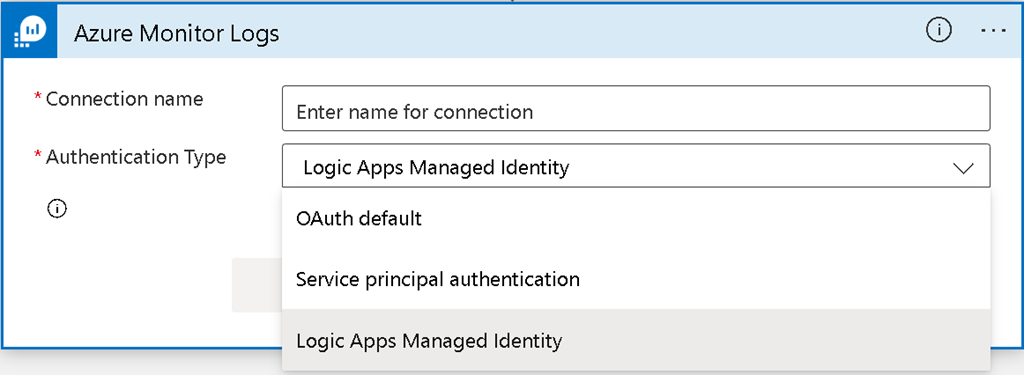
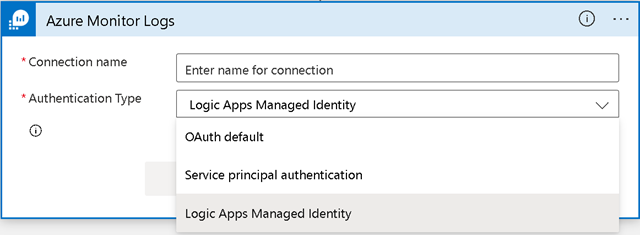
- Return to your Logic App, select Designer on the left navigation pane. In Azure Monitor Logs connector Connection, choose Logic App Managed Identity authentication type in dropdown.
See Azure Monitor Logs connector, Authenticate to Azure resources with managed identities in Azure Logic Apps, Azure AD authentication