MC1423117 - Thumbnail view for PDFs is available in OneDrive and SharePoint on the web

Message Center

Summary

OneDrive and SharePoint on the web will add a default-enabled thumbnail view in the PDF viewer by mid-August 2026, allowing users to visually browse and jump to PDF pages easily. No admin action or changes to permissions are required; organizations should update training and inform users.

Published

Jul 10, 2026

Service

SharePoint Online
Microsoft OneDrive

Tag

Feature update
User impact

More information
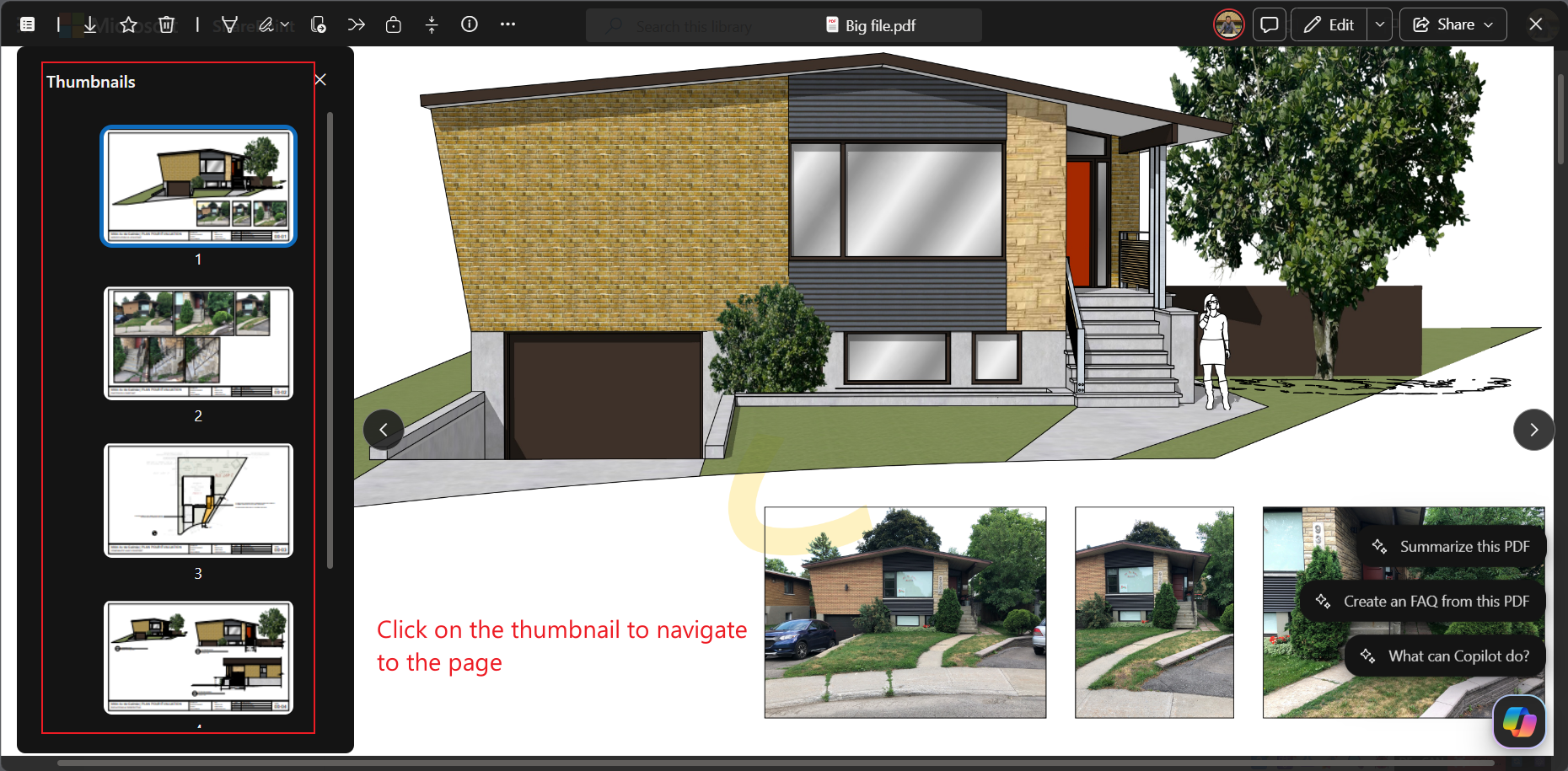
What and Why:

We are improving PDF navigation in OneDrive and SharePoint on the web by adding a thumbnail view in the PDF viewer. Users will be able to open a thumbnail panel to visually browse pages in a PDF and jump directly to a selected page. This update helps users navigate long PDFs more quickly, especially when they need to find a visual section, page layout, chart, image, or form page without scrolling page by page.

This message is associated with Roadmap ID 566696.

Rollout Schedule:

  • Targeted Release (Worldwide): Beginning early August 2026; expected to complete by mid-August 2026
  • General Availability (Worldwide, GCC, GCC High, DoD): Beginning mid-August 2026; expected to complete by late August 2026

Impact on Your Organization:

Who is affected: All users who view PDFs in OneDrive and SharePoint on the web

Platforms/Services:

  • OneDrive (Web)
  • SharePoint (Web)

What will happen:

  • Users will see a new option to open a thumbnail pane in the PDF viewer.
  • A visual list of page thumbnails will be available for navigation.
  • Users can select a thumbnail to jump directly to a specific page.
  • The currently viewed page will be highlighted in the thumbnail pane while scrolling.
  • The feature will be enabled by default.
  • There are no changes to file permissions, sharing behavior, sensitivity labels, download behavior, or admin controls.
  • Screenshot: Browse PDF pages with visual thumbnails:

    user settings

Action Required/Recommendations:

No admin action is required.

Recommended actions:

  • Inform helpdesk and support teams about this user experience improvement
  • Update internal training materials or documentation if they reference PDF navigation workflows
  • Consider notifying users who frequently work with long or complex PDF files

Compliance considerations:

No compliance considerations identified, review as appropriate for your organization.