What and Why:
We are updating the Pin Microsoft Copilot app to the Windows taskbar setting in the Microsoft 365 admin center based on customer feedback, giving administrators more flexibility and clarity when managing Copilot taskbar pinning. This update introduces two changes:
- New option to pin for users with a paid Microsoft 365 Copilot license: Admins will be able to target taskbar pinning to users with a paid Microsoft 365 Copilot license.
- "Do not pin" will no longer be preselected by default: When no pinning preference has been explicitly saved, the setting will open with no option selected. This changes only what the admin center displays. It does not change how the app is pinned on any device.
Rollout Schedule:
- General Availability (Worldwide): Rollout will begin in early December 2026 and is expected to complete by mid-December 2026.
Impact on Your Organization:
Who is affected
- Administrators who manage Microsoft Copilot taskbar pinning.
- Organizations that use this setting, including those that want to target taskbar pinning to users with a paid Microsoft 365 Copilot license.
Platforms and services
- Microsoft 365 admin center
- Microsoft Entra
- Microsoft Intune
- Microsoft Copilot app for Windows
What will happen
- The setting is available in Microsoft 365 admin center > Copilot > Settings > Pin Microsoft Copilot app to the Windows taskbar.
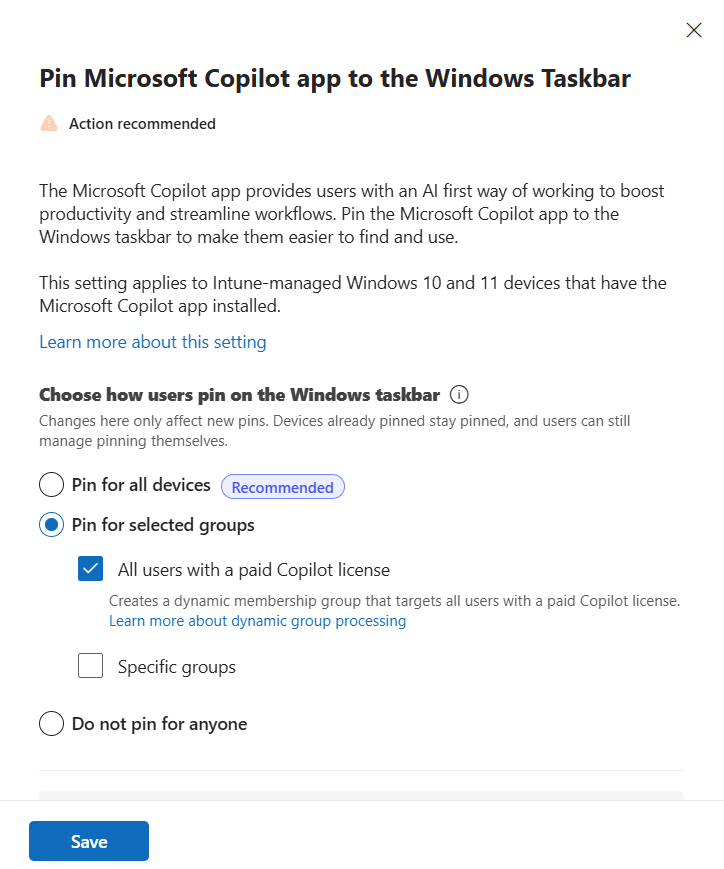
- A new Pin for users with a paid Microsoft 365 Copilot license option will be available. When an admin selects and saves this option, the Microsoft 365 admin center will create a license-based group in Microsoft Entra on the admin's behalf and use the existing Intune policy flow to target eligible users.
- To target pinning to a custom mix of user segments in your tenant, you can use the existing Pin for selected groups option in addition to the new option.
- When an admin has not configured the setting, Do not pin for anyone will no longer be preselected. After this update, no option will be preselected until an admin makes an explicit choice.
- If your organization has not previously configured this setting, no action is needed. To enable pinning, select and save a pinning option.
- If you previously saved Do not pin, no new pins will be added, but the setting will appear with no option selected after the update. To have the admin center explicitly record and display Do not pin, select and save it again.
- If you previously saved Pin for all devices or Pin for selected groups, no action is needed. Your existing selection will be preserved, and pinning will continue according to that configuration. You can select the new option if it better fits your organization's needs.
- In all cases, Do not pin only stops new pins from being added through this setting. It does not remove pins that already exist.
Pin for all users with a paid Copilot license
Action Required/Recommendations:
We recommend that you review your organization's preferred Microsoft Copilot taskbar pinning configuration.
If you plan to use the paid-license targeting option, ensure that the administrator configuring the setting has permission to create security groups in Microsoft Entra. If the administrator does not have this permission, the setting cannot create the required license-based group, and the change will not be saved.
Your organization's existing permissions and eligibility requirements for managing Microsoft Copilot taskbar pinning continue to apply. After the update is available:
- Go to Microsoft 365 admin center > Copilot > Settings > View all.
- Select Pin Microsoft Copilot app to the Windows taskbar.
- Review the available pinning options.
- Choose the option that fits your organization. To pin the app only for users with paid Microsoft 365 Copilot licenses, select Pin for users with a paid Microsoft 365 Copilot license.
- Select Save.
Learn more
Compliance considerations:
No compliance considerations identified. Review as appropriate for your organization.