Updated September 17,April 27, 2026: We have updated the content.timeline. Thank you for your patience.
Introduction
We’re introducing a new co-branding capability that will allow organizations to display a branded footer at the bottom of the Chat screen in the Microsoft 365 Copilot app. This update will enable admins to add their organization’s logo to their users’ Microsoft 365 Copilot app, helping users confirm they are using their trusted, work-managed Copilot experience.
This feature will begin rolling out in early May 2026 (previously late March) and is expected to complete by mid-June 2026 (previously end of May).
This message is associated with Microsoft 365 Roadmap ID 555852.
When this will happen
- General Availability (Worldwide):
WeRollout will begin rolling outin Augustearly May 2026 (previously mid-July)late March) and is expected to complete by mid-SeptemberJune 2026 (previously(previously end of July)May).
How this will affect your organization
Who is affected
- All Microsoft 365 tenants using the Microsoft 365 Copilot app.
What will happen
- Admins will be able to upload a logo in the Microsoft 365 admin center to customize the footer in the Microsoft 365 Copilot app.
- The footer will
usedisplay an “Approved by Logo” indicator to help users confirm they are in an organization-approved Copilot environment: 
- Only the
same logo configured infrom your organization’s theme for other Microsoft 365 apps. Only the logoconfiguration will be used; other theme settingselements will not applybe applied in this release.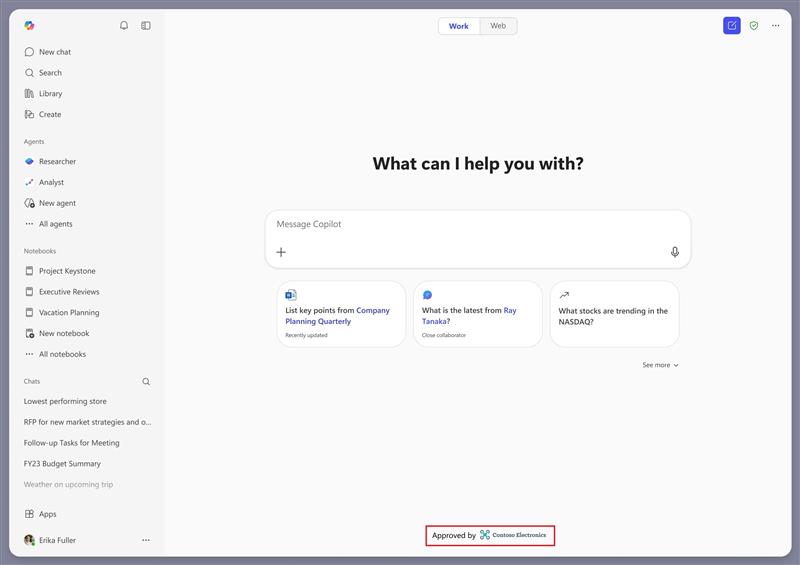
Admins can choose a footer label: Approved by, Provided by, or Managed by. Selecting No label will display the logo without a label.- This feature will be off by default and will require admin configuration.
- There will be no user impact unless an admin enables the footer.
What you can do to prepare
No action will be required unless you want to enable the branded footer.
Admins who want to configure this feature should:
InReview and verify your organization’s theme configuration in the Microsoft 365 admin center, go.- Upload the logo you want to
Org settings > Custom theme and open your default theme. Confirm that your organization’s logo is configureddisplay in the Logos tab. This is the same logo used for your organization’s branding in other Microsoft 365 apps.Open the Copilot Chat tab and select Add your brand to Copilot Chat footer area.In the Footer style dropdown, choose No label, Approved by, Provided by, or Managed by.Save your changes to display your logo in the branded footer in the Microsoft 365 Copilot app. footer once rollout begins.- Use the existing theme management flow to apply co-branding once the feature is available.
Please note: The footer currently uses your organization's default theme and applies to all users. Targeting different logos to specific user groups will be supported in a later update.
For configuration guidance: Customize the theme for your organization | Microsoft 365 | Microsoft Learn
Compliance considerations
No compliance considerations identified. Review as appropriate for your organization.