Metadata at Apr 16, 2026
Published
Service
Tag
Platforms
MC1282567 - Create charts on pages with AI in SharePoint
Message Center
What changed since this version
Updated September 14, 2026: We have updated the timeline. Thank you for your patience.
Introduction
We’re introducing a new Charts web part with AI assistance in SharePoint, designed to help page authors quickly create rich, interactive charts using plain-language prompts. This update reduces the time and effort needed to visualize data on SharePoint pages and enables more intuitive, AI-powered authoring experiences directly within SharePoint.
This message is associated with Microsoft 365 Roadmap ID 560076.
When this will happen:
- Targeted Release: Rollout begins in
earlylate May 2026 (previously early May) and is expected to complete by mid-May 2026.June 2026 (previously mid-May). - General Availability (Worldwide): Rollout begins in mid-
MayJune 2026 (previously mid-May) and is expected to complete bylate May 2026.end of September 2026 (previously end of August).
How this affects your organization:
Who is affected:
- SharePoint page authors
- Tenants using SharePoint Online
- A Microsoft 365 Copilot (Premium) license is required to use this feature
What will happen:
- While editing a SharePoint page, a Chart web part can be added in one of the following ways:
- Open the AI agent chat pane from the Agents coin icon in the upper-right navigation or the AI sparkle icon on the page toolbar.
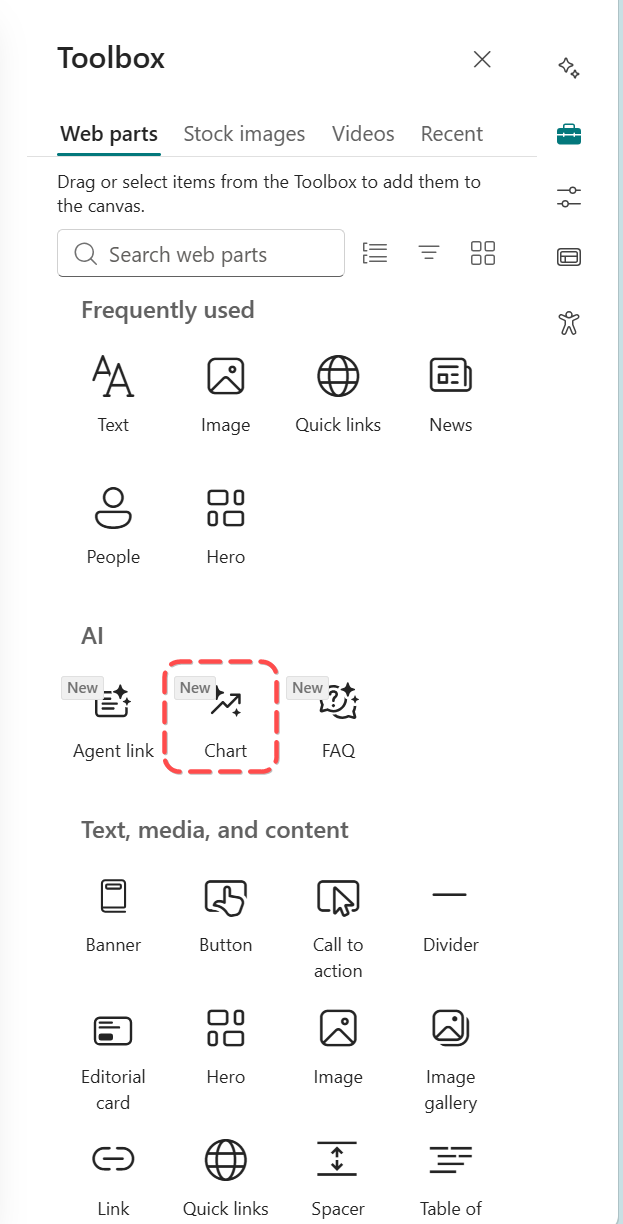
- Open the web part toolbox, search for Chart under the AI category, and add it to the page (this automatically opens the chat pane).
Screenshot 1: Entry point if adding a chart from the web part toolbox:
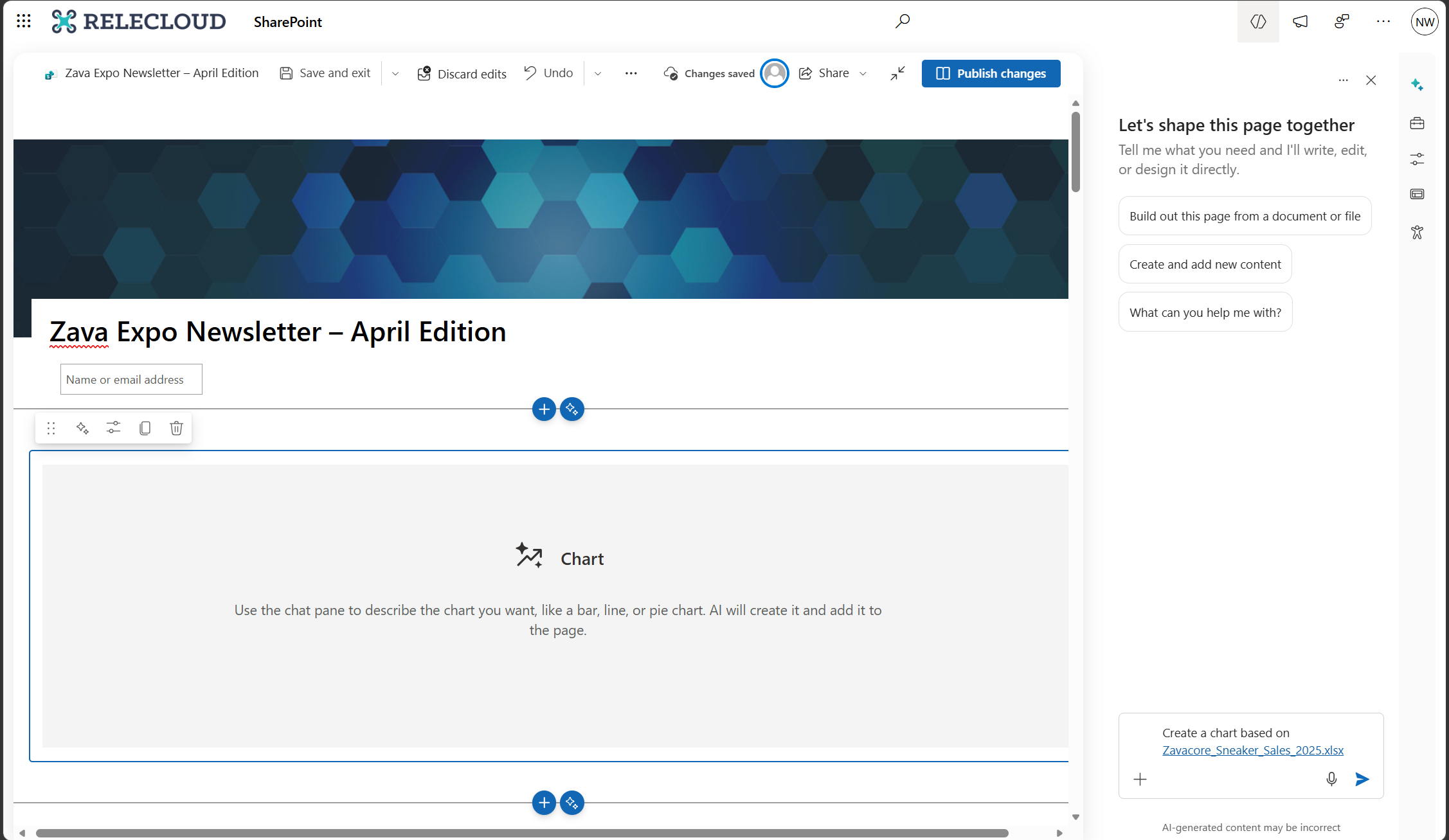
- Describe the chart to create using plain language, such as the data to visualize and the chart type. Relevant files can be attached to provide additional context.
- After the chart is created, follow-up prompts can be used to:
- Add, edit, or remove data
- Adjust the look and feel of the chart
- Changes can be reverted at any time using the Undo button in the command bar.
- The feature is enabled by default for users with a Microsoft 365 Copilot license, and existing SharePoint permissions and Microsoft 365 policies continue to apply.
Screenshot 2: Prompt to add a chart through the chat pane:
What you can do to prepare:
No action is required.
- Optionally inform SharePoint authors of the new capability.
- Update internal documentation if you provide SharePoint or Copilot guidance.
- Review Copilot licensing assignments to confirm which users will have access.
Learn more: Create a chart on pages with AI in SharePoint | Microsoft Support
Compliance considerations:
This change introduces a new way for users to interact with generative AI by using natural language prompts to create and edit charts in SharePoint pages.
Snapshot from Apr 16, 2026
Introduction
We’re introducing a new Charts web part with AI assistance in SharePoint, designed to help page authors quickly create rich, interactive charts using plain-language prompts. This update reduces the time and effort needed to visualize data on SharePoint pages and enables more intuitive, AI-powered authoring experiences directly within SharePoint.
This message is associated with Microsoft 365 Roadmap ID 560076.
When this will happen:
- Targeted Release: Rollout begins in early May 2026 and is expected to complete by mid-May 2026.
- General Availability (Worldwide): Rollout begins in mid-May 2026 and is expected to complete by late May 2026.
How this affects your organization:
Who is affected:
- SharePoint page authors
- Tenants using SharePoint Online
- A Microsoft 365 Copilot (Premium) license is required to use this feature
What will happen:
- While editing a SharePoint page, a Chart web part can be added in one of the following ways:
- Open the AI agent chat pane from the Agents coin icon in the upper-right navigation or the AI sparkle icon on the page toolbar.
- Open the web part toolbox, search for Chart under the AI category, and add it to the page (this automatically opens the chat pane).
Screenshot 1: Entry point if adding a chart from the web part toolbox:
- Describe the chart to create using plain language, such as the data to visualize and the chart type. Relevant files can be attached to provide additional context.
- After the chart is created, follow-up prompts can be used to:
- Add, edit, or remove data
- Adjust the look and feel of the chart
- Changes can be reverted at any time using the Undo button in the command bar.
- The feature is enabled by default for users with a Microsoft 365 Copilot license, and existing SharePoint permissions and Microsoft 365 policies continue to apply.
Screenshot 2: Prompt to add a chart through the chat pane:
What you can do to prepare:
No action is required.
- Optionally inform SharePoint authors of the new capability.
- Update internal documentation if you provide SharePoint or Copilot guidance.
- Review Copilot licensing assignments to confirm which users will have access.
Learn more: Create a chart on pages with AI in SharePoint | Microsoft Support
Compliance considerations:
This change introduces a new way for users to interact with generative AI by using natural language prompts to create and edit charts in SharePoint pages.