Updated June 6, 2024: We have updated the rollout timeline below for GCC High. Thank you for your patience.
In 2023, we introduced scoped search for the Microsoft Viva Connections app in what is now Microsoft Classic Teams. Now we are rolling out scoped search to New Teams.
If you are using Classic Teams, there is no change for your organization.
[When this will happen:]
Targeted Release: We will begin rolling out late February 2024 and expect to complete by early March 2024.
Standard Release: We will begin rolling out early March 2024 and expect to complete by late March 2024.
GCC: We will begin rolling out mid-April 2024 and expect to complete by late April 2024.
GCC High: We will begin rolling out mid-May 2024 and expect to complete by early July 2024 (previously late May 2024.May).
[How this will affect your organization:]
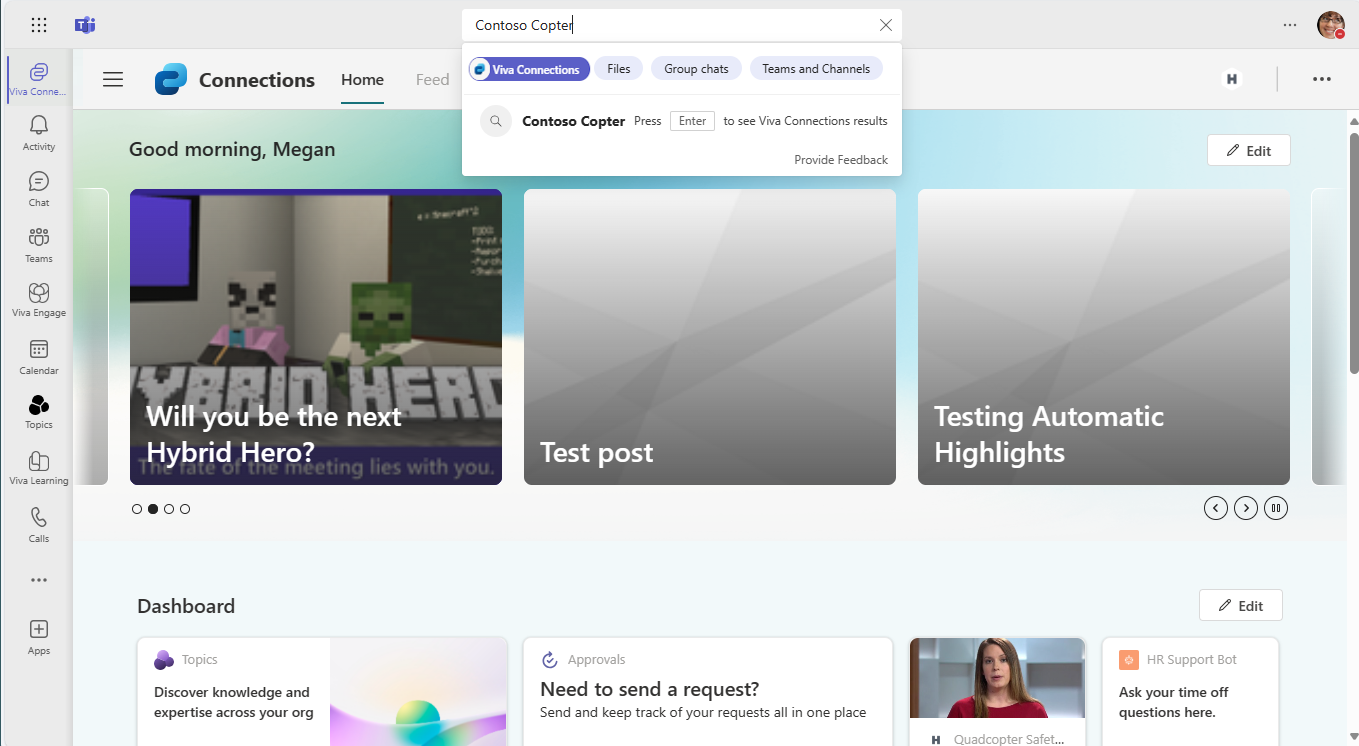
After the rollout, when using Viva Connections in New Teams, the search box text will display Search in Viva Connections (or the custom name your organization uses for Viva Connections). When you start typing in the search box, you will notice that Viva Connections is already selected and highlighted (screenshot 1). When you press Enter, you will go to a workplace search like you may have experienced on your organization’s intranet (screenshot 2). If you’d rather search within Teams, deselect the highlighted element (screenshot 1) and search again.
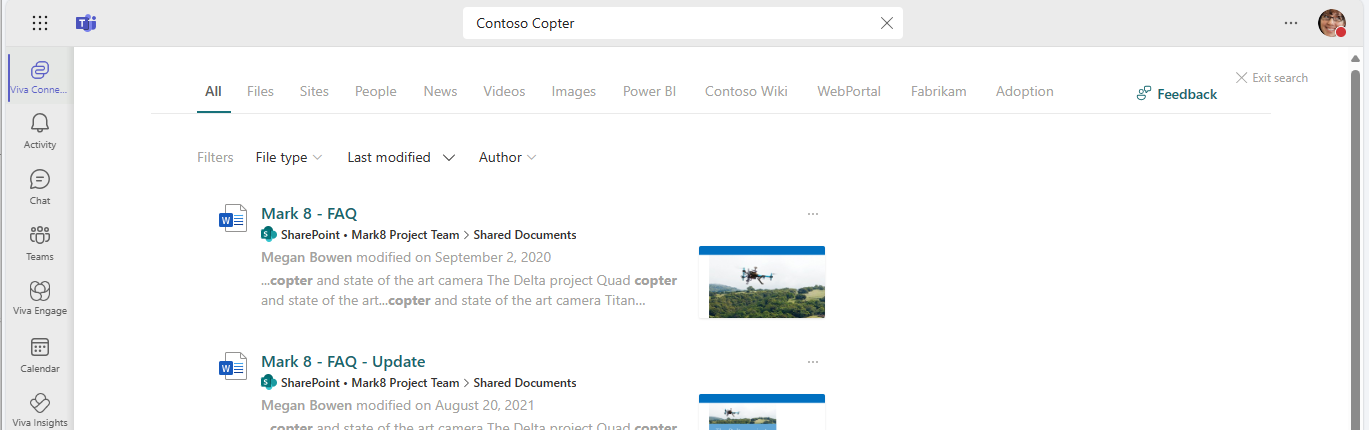
To exit search, select the Viva Connections button in the app bar on the left to access the Viva Connections navigation, switch to another app with the app bar buttons in Teams, or use the back button in your browser in Teams for the web or the < > navigation in Teams for desktop.
[What you need to do to prepare:]
If your organization is using New Teams, no action is needed to prepare for this rollout. You may want to notify your users about this change and update any relevant documentation as appropriate.