Updated September 13, 2024: We have updated the rollout timeline for Search in Bing, below. Thank you for your patience.
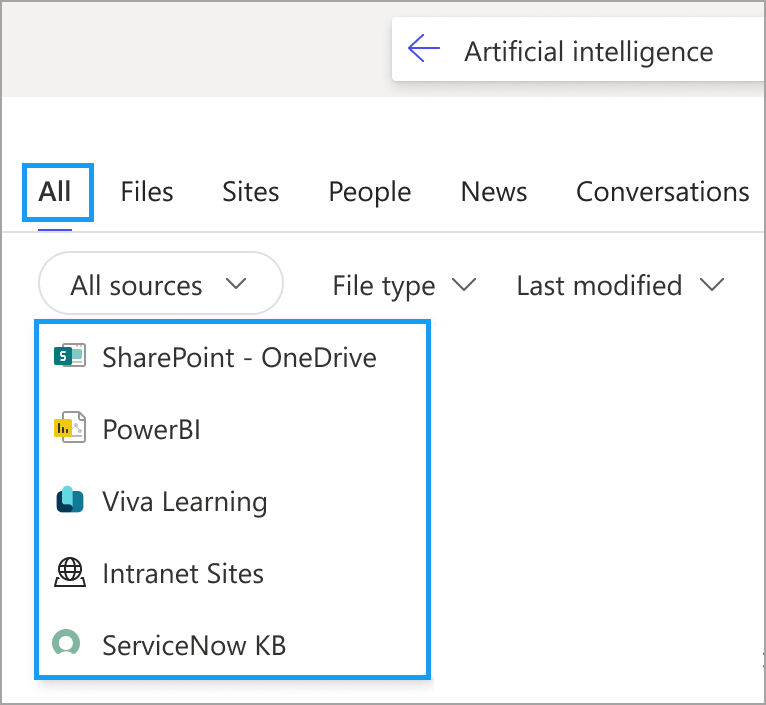
If you have multiple content sources set up in Microsoft Search, such as Microsoft Power BI, Microsoft Viva Learning, or third-party sources indexed using Microsoft Graph Connectors, users will soon see content source filters in the All vertical.
This message is associated with Microsoft 365 Roadmap ID 383953.
[When this will happen:]
For Microsoft SharePoint Online (organization level) and Microsoft365.com (Office.com):
Worldwide: We will begin rolling out early April 2024 (previously mid-March 2024March) and expect to complete by mid-May 2024.
For Microsoft Search in Bing:
Worldwide: We will begin rolling out by mid-May 2024 and expect to complete by late June 2024.April 2025 (previously early September).
[How this will affect your organization:]
If you have multiple content sources set up in Microsoft Search, users will see these content source filter options in the All vertical (based on availability):
- SharePoint - OneDrive
- Power BI
- Viva Learning
- Graph Connector content sources

[What you need to do to prepare:]
No action is needed to prepare for this change. You may want to notify your users about this change and update any relevant documentation as appropriate.
You can customize how Graph Connector content sources are shown in the filter experience. To customize the name and icon shown to users for a connection in content source filters:
- In Microsoft 365 admin center, go to Search and Intelligence > Data sources > select the connection you want to customize and then select Edit in the side panel.
- Set your Connection Display name and icon. Note that certain keywords are reserved and cannot be used in the Display name (such as Microsoft brands and default search vertical names).
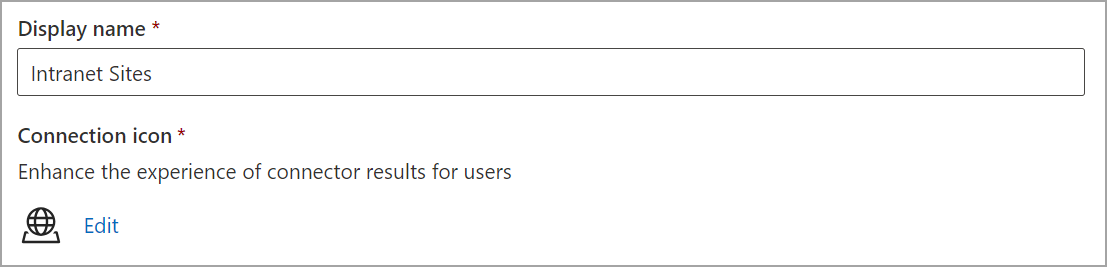

To group together multiple connections into a single value in the filter, set the same Display name for them.