Updated October 4, 2024:February 28, 2025: We have updated the rollout timeline below. Thank you for your patience.
Coming soon: Microsoft Teams will be bringing Workflows powered by Microsoft Power Automate to the three-dot menu for files shared in Teams chat or channels.
This message is associated with Microsoft 365 Roadmap ID 381643.
When this will happen:
Targeted release: We will begin rolling out mid-October 2024 and expect to complete by late October 2024.
Worldwide: We will begin rolling out late October 2024 (previously mid-October) and expect to complete by early November 2024 (previously late October).
Worldwide: We will begin rolling out early November 2024 (previously late October) and expect to complete by late November 2024 (previously early November).
GCC: We will begin rolling out early December 2024 (previously late October) and expect to complete by mid-December 2024March 2025 (previously early November)mid-February).
How this will affect your organization:
To make sure Microsoft Teams provides the best workflow experience for our users, we are making it easier to configure and run workflows for files. A user will be able to select the three-dot menu on files shared in Teams chat or channels, and then choose Workflows. From Workflows, the user will choose an instant workflow to run on a file. The user must set up the workflows in advance. A user can set up a new workflow for files by selecting See more workflows at the bottom of the three-dot menu. This launches the Workflows task module, where a user can choose a template to start setting up a new workflow. Examples of file workflows include Request approval for selected file, Get notified in Teams when a file is updated, Create a PDF copy of the file, and Add a task for this file.
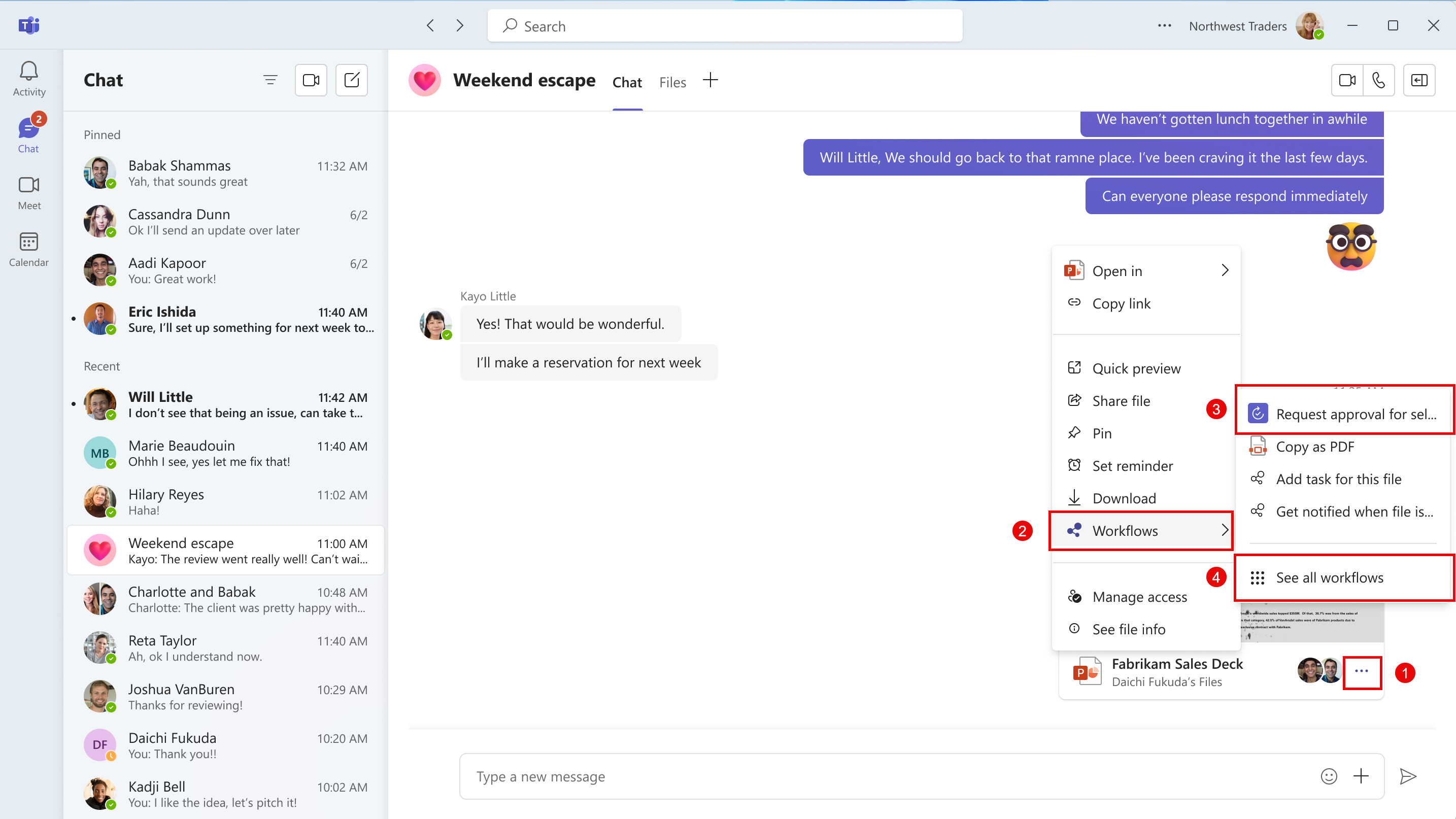

If the Power Automate app is disabled in the Teams admin center, users will not see this option in the three-dot menu.
This feature will only be available in the New Teams client on the desktop and on the web.
What you need to do to prepare:
No action is needed from you to prepare for this rollout. You may want to notify your users about this change so they can find the new entry point for Workflows.